Windows 11 can output Dolby Atmos to a compatible soundbar or AV receiver. This also works if a suitable HDMI audio extractor is connected between the computer and the soundbar.
The entire HDMI signal chain must support Dolby Atmos, and the PC must detect the connected soundbar or HDMI audio extractor as an Atmos-capable audio device.
Requirements
You need:
a Windows 11 PC with HDMI output
a Dolby Atmos-compatible soundbar or AV receiver
an HDMI audio extractor that supports the required audio formats
the free Dolby Access app
suitable Dolby Atmos content
The EDID of the HDMI audio extractor is especially important. The extractor must tell the PC that the connected soundbar supports the required multichannel and Atmos audio formats.
If, for example, only a stereo or 5.1 EDID is active, Windows may not offer the Dolby Atmos option.
1. Connect the devices
Connect the HDMI output of the computer to the HDMI input of the audio extractor.
Connect the soundbar to the dedicated HDMI audio output of the extractor. If the extractor also has an HDMI video output, this can be connected to a TV, monitor, or projector. We recommend to use this loop-through option for the display. Otherwise you have to deal with another virtual monitor and its settings.
For Dolby Atmos, the soundbar should be connected via HDMI or HDMI-eARC. Toslink optical audio is not suitable for full Dolby Atmos transmission, and HDMI-ARC is limited to Dolby Digital Plus. On the audio extractor, select an EDID mode that passes through or advertises the advanced audio capabilities of the soundbar.
2. Install Dolby Access
Open the Microsoft Store, search for Dolby Access, and install the app.
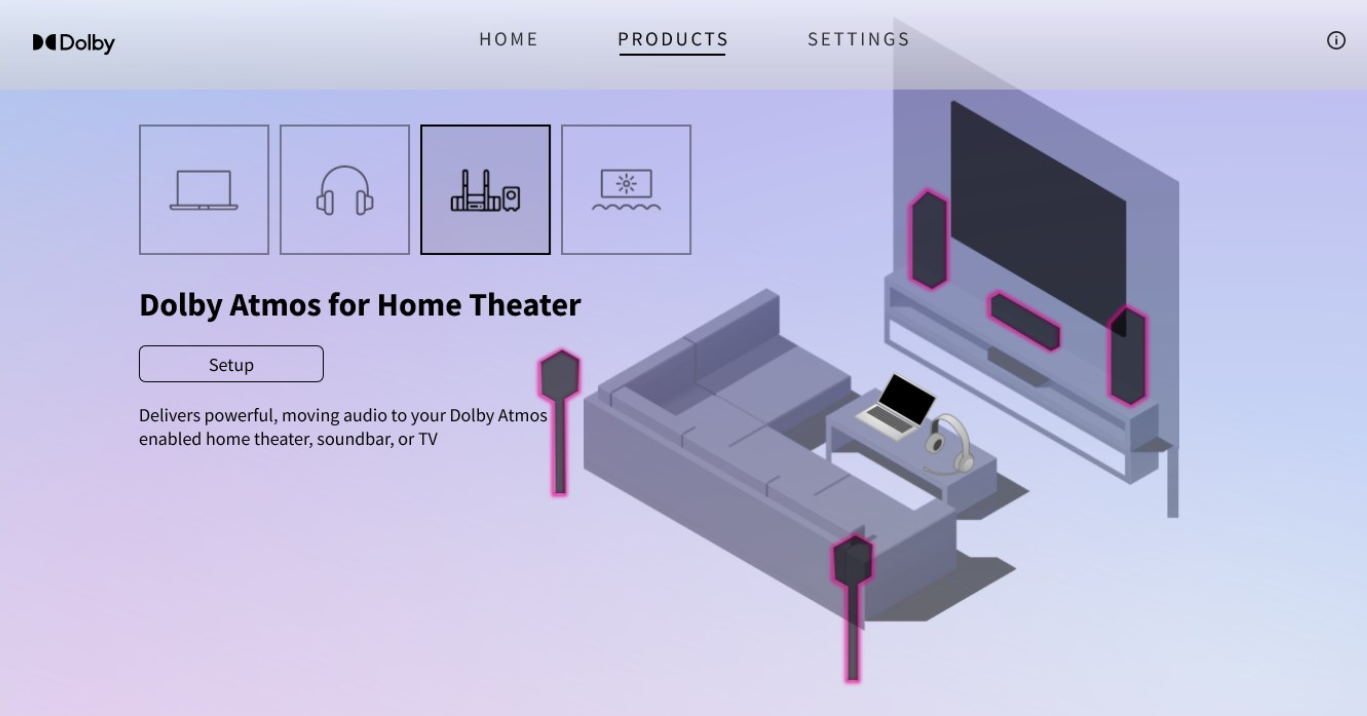
For output to a soundbar, you do not need to purchase or configure Dolby Atmos for Headphones.
The paid Dolby Atmos for Headphones feature is intended for virtual Atmos playback through ordinary stereo headphones.
For a soundbar or home theater system, Windows instead uses:
Dolby Atmos for Home Theater
Therefore, it is sufficient to install Dolby Access. A paid headphone license is not required for HDMI output to an Atmos soundbar.
3. Select the correct HDMI audio device
Open:
Settings → System → Sound
Under Output, select the HDMI audio device connected to the audio extractor or soundbar.
Depending on the computer and graphics hardware, it may appear as:
NVIDIA High Definition Audio
AMD High Definition Audio
Intel Display Audio
or under the name of the connected HDMI device
Make sure you select the HDMI output and not the computer's internal speakers or analog audio output.
4. Enable Dolby Atmos for Home Theater
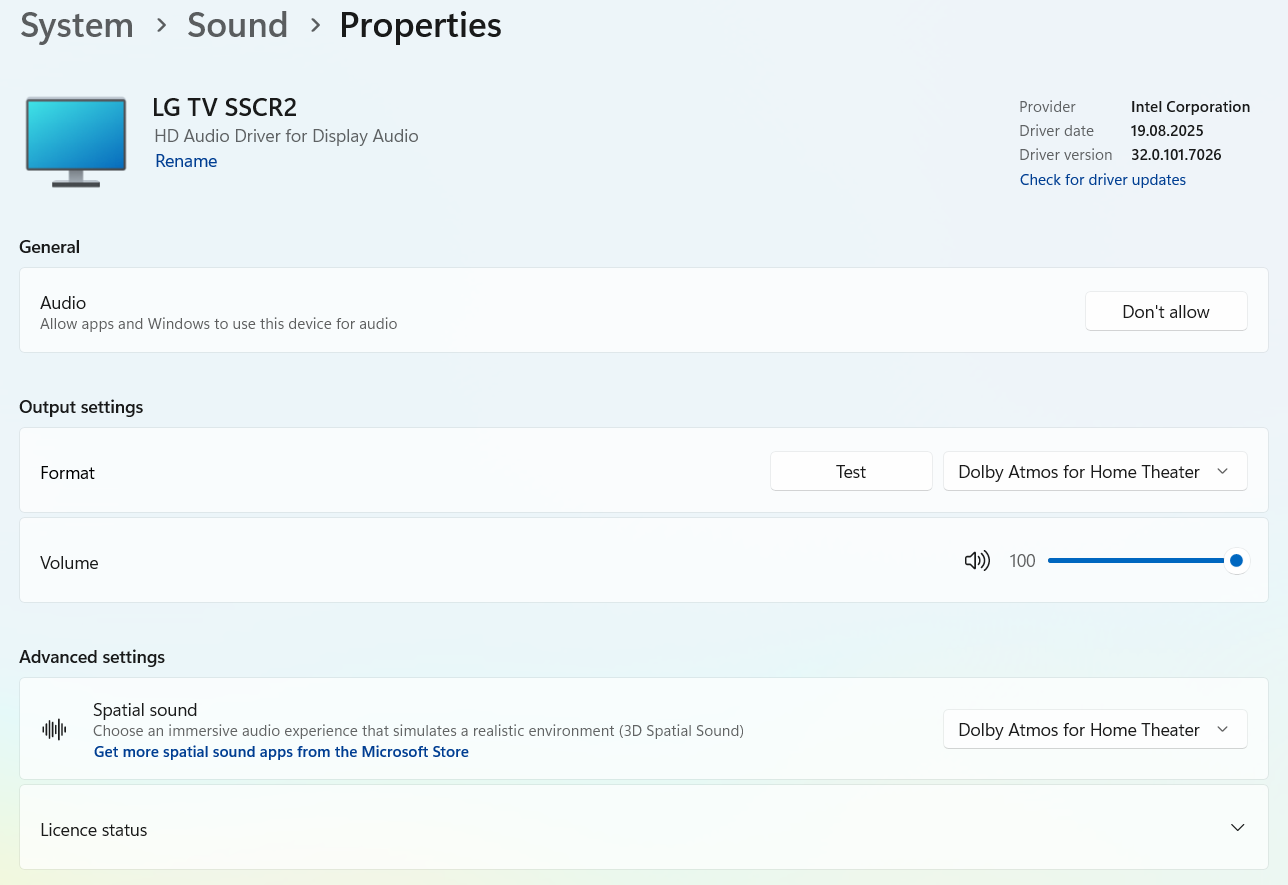
Open the properties of the HDMI output device.
Under Spatial sound, select:
Dolby Atmos for Home Theater
Dolby Atmos is now enabled for this HDMI output.
If this option does not appear, check the following:
Is Dolby Access installed?
Does the soundbar support Dolby Atmos?
Is the soundbar connected via HDMI?
Does the HDMI audio extractor support the required audio formats?
Is the correct EDID mode selected on the extractor?
Are the Atmos capabilities of the soundbar being passed correctly to the PC?
Is the HDMI audio driver of the graphics adapter installed?
5. Are additional codecs required?
Normally, no additional codec packs are required for Dolby Atmos. Applications such as VLC Media Player already include the required audio decoders. Windows usually also includes the necessary components for Spatial Audio - but not on some new computers:
Check for missing Dolby codecs
Depending on the Windows 11 installation, some Dolby codecs may be missing. Since Windows 11 version 24H2, for example, AC-3 / Dolby Digital is no longer included by default with every clean installation. On upgraded systems, it may still be present or provided by the PC manufacturer.
For Dolby Atmos, E-AC-3 / Dolby Digital Plus is especially important because many compressed Atmos soundtracks use this format. Local movie files may also contain Atmos in Dolby TrueHD.
A simple way to identify a codec issue is to play the same file in different players:
- if it works in VLC but not in Windows Media Player, Windows may be missing a suitable system decoder
- VLC includes many audio decoders itself, so additional codec packs are usually not required
- when using HDMI bitstream / passthrough, the Dolby stream is sent directly to the soundbar, so Windows does not need to decode it first
If a codec is actually missing, a suitable decoder supplied by the PC manufacturer or a trusted third-party codec can be used.
For Dolby Atmos playback, it is therefore particularly important that Dolby Digital Plus (E-AC-3) and Dolby TrueHD are either supported by the media player or passed directly to the soundbar via HDMI passthrough.
6. Dolby Atmos in games and applications
Dolby Atmos is not limited to movies. Games and applications can also use Windows Spatial Audio and output true spatial audio information.
For these applications, Dolby Atmos for Home Theater should be enabled in Windows.
The application then sends spatial audio objects to Windows, which prepares them for output to the connected Atmos system.
Not every game supports Dolby Atmos. For games without Spatial Audio support, regular PCM output in stereo, 5.1, or 7.1 may also be a good choice.
7. Movie files with Dolby Atmos
Dolby Atmos in movie files can be carried in different audio formats, for example:
Dolby Digital Plus with Atmos
Dolby TrueHD with Atmos
With a suitable media player such as VLC, it can be useful to enable HDMI audio passthrough or bitstream output.
The original soundtrack is then transmitted directly to the soundbar.
This is often a good solution for locally stored movie files because the soundbar receives and decodes the original Dolby audio stream itself.
8. Does every audio signal become Dolby Atmos?
No. When Dolby Atmos for Home Theater is enabled, Windows uses its Spatial Audio output path for compatible applications. Normal system sounds and other audio sources can also be routed through this output path.
However, this does not turn ordinary stereo or 5.1 audio into genuine Dolby Atmos content.
Real height and object-based audio information can only be reproduced if it is provided by the game, application, or original soundtrack.
9. Does Dolby Atmos increase latency?
When Dolby Atmos for Home Theater is enabled, Windows performs additional processing for spatial audio output.
This processing can introduce some additional audio latency.
The actual delay depends on several factors, including:
the PC and audio driver
the graphics adapter
the HDMI audio extractor
the soundbar
the internal processing of the connected devices
For movie playback, this is usually not a problem.
For gaming, additional latency may be more noticeable.
If a game supports Dolby Atmos or Windows Spatial Audio, Dolby Atmos for Home Theater is the appropriate setting.
For games without Atmos support, direct PCM output in stereo, 5.1, or 7.1 may provide a simpler signal path.
For movie files with an existing Dolby Atmos soundtrack, bitstream or passthrough output is often preferable because the original audio stream is sent directly to the soundbar.
10. Which content offers Dolby Atmos?
Dolby Atmos can be found in:
selected Windows games
applications that support Windows Spatial Audio
local movie files
Blu-ray content
some streaming services
YouTube
YouTube is not suitable for testing Dolby Atmos.
Even if a video is labelled “Dolby Atmos”, “7.1.4”, or “Atmos Test”, YouTube does not send a genuine Dolby Atmos audio stream to the soundbar.
Such videos may contain stereo audio designed to create a spatial impression, but they cannot be used to verify a true Atmos setup.
Streaming services
Some streaming services do offer Dolby Atmos content.
However, Atmos playback under Windows can additionally depend on factors such as:
the streaming service
the subscription plan
the app or browser being used
the Windows version
DRM support
the connected hardware
The Windows Netflix app currently supports Atmos in selected movies. Usually only the original language track contains Atmos. Also the Premium-subscription for 4K Ultra-HD playback is required for this. For a reliable test, an Atmos-compatible Windows game or a known Dolby Atmos test file is usually the better choice.
How can I tell whether Dolby Atmos is working?
Many Atmos-capable soundbars briefly show “Dolby Atmos” on their display or in their companion app when they receive an Atmos signal. With ordinary Windows system sounds, music, or a YouTube video, this indication does not necessarily appear. For a proper test, use a source that is known to output genuine Dolby Atmos, e.g. the test files on the Dolby Access support site.
Summary
To use Dolby Atmos in Windows 11, the soundbar should be connected through a suitable HDMI signal path. The HDMI audio extractor must correctly report the Atmos capabilities of the soundbar to the computer via EDID.
Then install the free Dolby Access app and select Dolby Atmos for Home Theater as the Spatial Sound format for the HDMI output device.
Dolby Atmos for Headphones does not need to be purchased or configured for this purpose.
Additional codec packs are normally not required either. VLC already includes the necessary decoders, and movie files can often be played using HDMI bitstream or passthrough output.
Whether Dolby Atmos is actually reproduced ultimately depends on the content. Games, applications, and movie files can provide Atmos. YouTube does not, while Atmos support from streaming services depends on the service, app, subscription, and playback hardware.
Troubleshooting
Windows does not detect Dolby Atmos after changing the HDMI setup
If a monitor was previously connected directly to the PC and you later insert an Atmos soundbar or HDMI audio extractor, Windows may initially continue using the old HDMI/EDID information. As a result, Dolby Atmos for Home Theater may not appear even though the new device supports it.
Try the following steps:
Switch off all HDMI devices completely.
Connect the new setup:
PC → HDMI audio extractor or soundbar → displaySwitch on the soundbar / extractor first, then the display, and finally the PC.
This gives the graphics driver a chance to read the new EDID during startup.Open Settings → System → Sound and select the HDMI audio output again.
If Atmos is still missing, open Device Manager and disable and re-enable the HDMI audio device, for example NVIDIA High Definition Audio, AMD High Definition Audio, or Intel Display Audio. Microsoft also recommends re-enabling the HDMI audio device when HDMI audio is not detected correctly.
Restart Windows if necessary.
If the problem remains, reinstall or update the graphics driver, because HDMI audio is handled by the GPU/display driver as well as the Windows audio system.
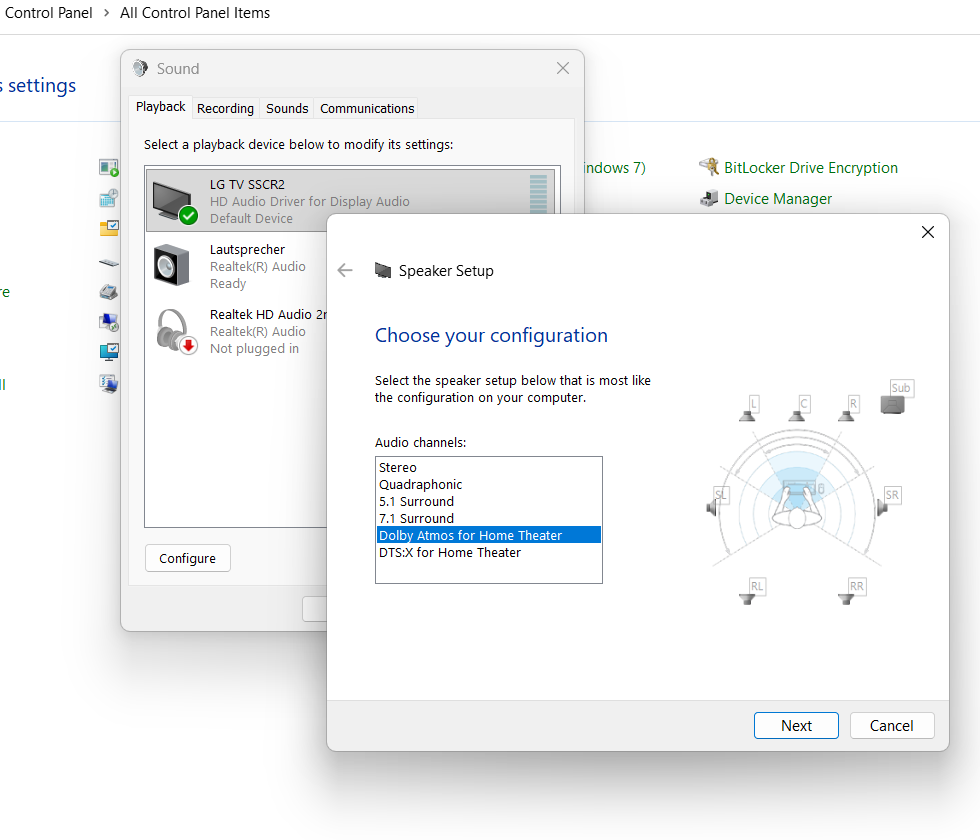
You can also check the HDMI device in the classic Windows control panel > sound settings under Supported Formats. If the expected Dolby formats are not listed, Windows is probably not receiving the correct audio capabilities from the EDID.
In this case, also check the EDID setting of the HDMI audio extractor. It should advertise the audio capabilities of the Atmos soundbar and not only Stereo or 5.1 PCM.
Was this article helpful?
That’s Great!
Thank you for your feedback
Sorry! We couldn't be helpful
Thank you for your feedback
Feedback sent
We appreciate your effort and will try to fix the article