This refers to FeinTech FPS00200, FPS00201, FPS210 and FPS400 Fingerprint Sensor for Windows Hello.
Plug the fingerprint sensor into the PC. You should see some sort of response. Press the Windows key + X and select Device Manager. The fingerprint sensor can be found under ‘Biometric devices’. If it doesn’t work, there are various possible scenarios:
1. Fingerprint sensor – the device cannot be started or does not appear in Device Manager
It may be that the PC’s USB port does not supply enough power, or that it is a USB 1.1 port (rather than USB 2.0 or USB 3.0). In this case, the driver is usually installed correctly, but the device cannot be started.
- Try a different USB 2.0/3.0 port (please also try the ports on the back of the PC, if any are available)
- Do not use a USB hub to connect the fingerprint sensor; instead, use a port on the motherboard
- Check in the computer’s BIOS whether ‘Legacy’ mode or USB 1.1 mode is enabled
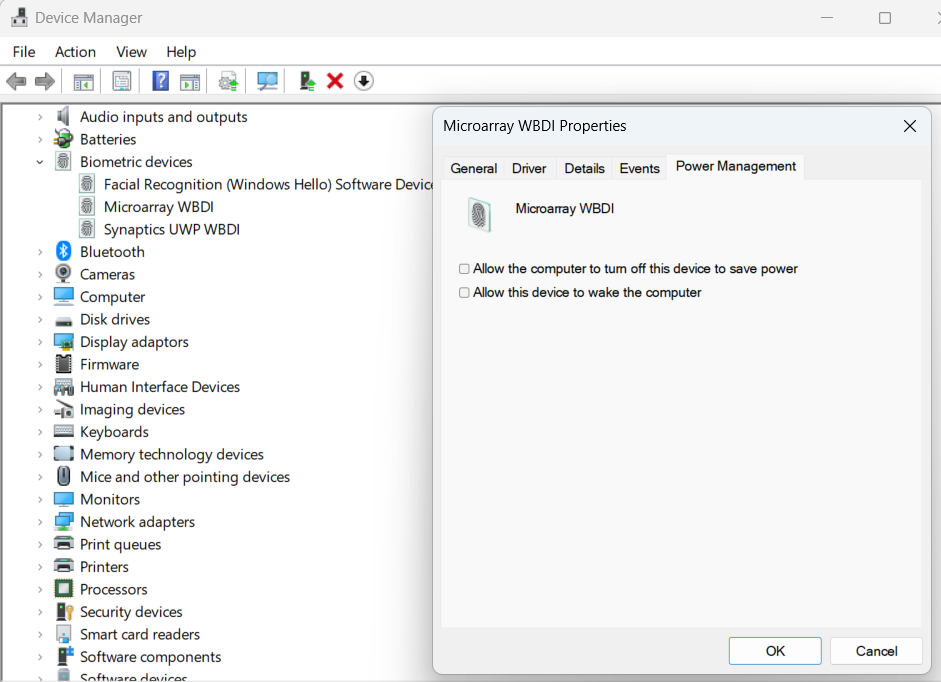
- Disable the power-saving option. To do this, open Device Manager and navigate to ‘Biometric devices’. Then right-click on ‘FocalTech Fingerprint Reader’ or ‘Microarray WBDI’ or ‘ChipSailing Fingerprint’ (depending on the chipset).
Then select “Properties” > Power Management and uncheck the box next to “Allow the computer to …”
2. A message appears stating that the driver cannot be installed or is faulty
The correct driver is usually installed automatically via Windows Update. Sometimes it can also be found under
Windows Update > Advanced options > Optional updates
Manual driver installation is very rarely necessary. If no driver is installed, Windows Device Manager will display an unknown device with a yellow exclamation mark.

You will then need to install the driver manually. Right click on the device name and lookup the Hardware IDs under Properties. To help yourself, you could enter the shown USB Hardware ID in the Microsoft Update Catalogue. To every USB hardware ID there are linked drivers, e.g. here
https://www.catalog.update.microsoft.com/Search.aspx?q=USB%5CVID_2541%26PID_0236 (ChipSailing)
or https://www.catalog.update.microsoft.com/Search.aspx?q=USB%5CVID_3274%26PID_8012 (MicroArray / MAFP)
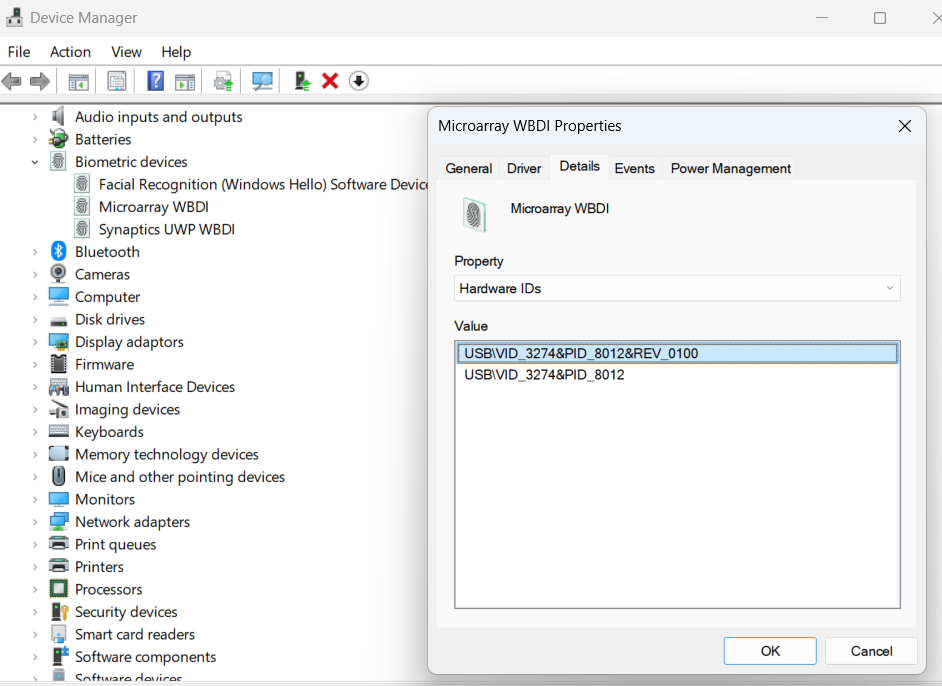
Please note that the drivers for Windows 10 & 11 are often the same. We are not aware of any driver faults, and it is virtually impossible that an incorrect driver has been installed.
3. Restricted rights
As usual, installation is only possible if you have an internet connection and admin rights.
If the computer is part of a school or company network, or if a group policy has been created by an administrator, the use of Windows Hello or biometrics for logging in may be disabled. In this case, please ask your system administrator to enable it.
(The settings “Allow the use of biometrics” and “Allow users to sign in using biometrics” or “Windows Hello for Business” should not be disabled, otherwise Windows Hello will not work. The default setting of “Not configured” is sufficient for Windows Hello to be usable. It may, but does not have to, be “enabled”.)
4. Windows Hello Disabled or no password
Please set a Windows password if you haven’t already done so. Then enable PIN (Windows Hello) under the sign-in options:
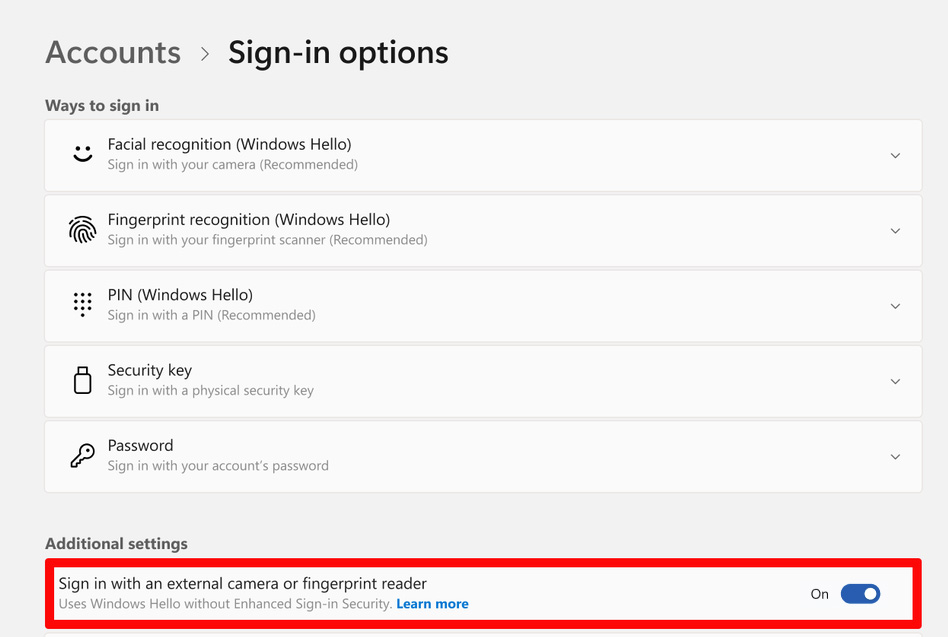
This checkbox appears only on computers with Enhanced Sign-in Security. It is not available or required on Non-ESS PCs:
Make sure that the fingerprint reader support without ESS is ON.
5. Trusted Platform Module
Make sure that TPM is enabled on your system:
If it is not enabled, first check whether this function has been disabled in your computer’s BIOS/UEFI and enable it if necessary. If you are unable to enable it, it is best to contact an experienced IT specialist. Further information is available here.
Under ‘Device Security’, these functions should be marked with a green tick:
6. Incorrect hardware architecture
The drivers are designed for standard desktop and laptop computers with Intel or AMD processors, or x86/x64 architecture.
For a new type of “Copilot+” laptop or tablet (with a Qualcomm Snapdragon processor or a Microsoft Surface running Windows on ARM architecture), a new type of fingerprint reader is required, which is not yet available. Current models of USB fingerprint sensors are not compatible.
There are several ways to find out whether your laptop is running Windows on ARM (e.g. with a Qualcomm Snapdragon processor):
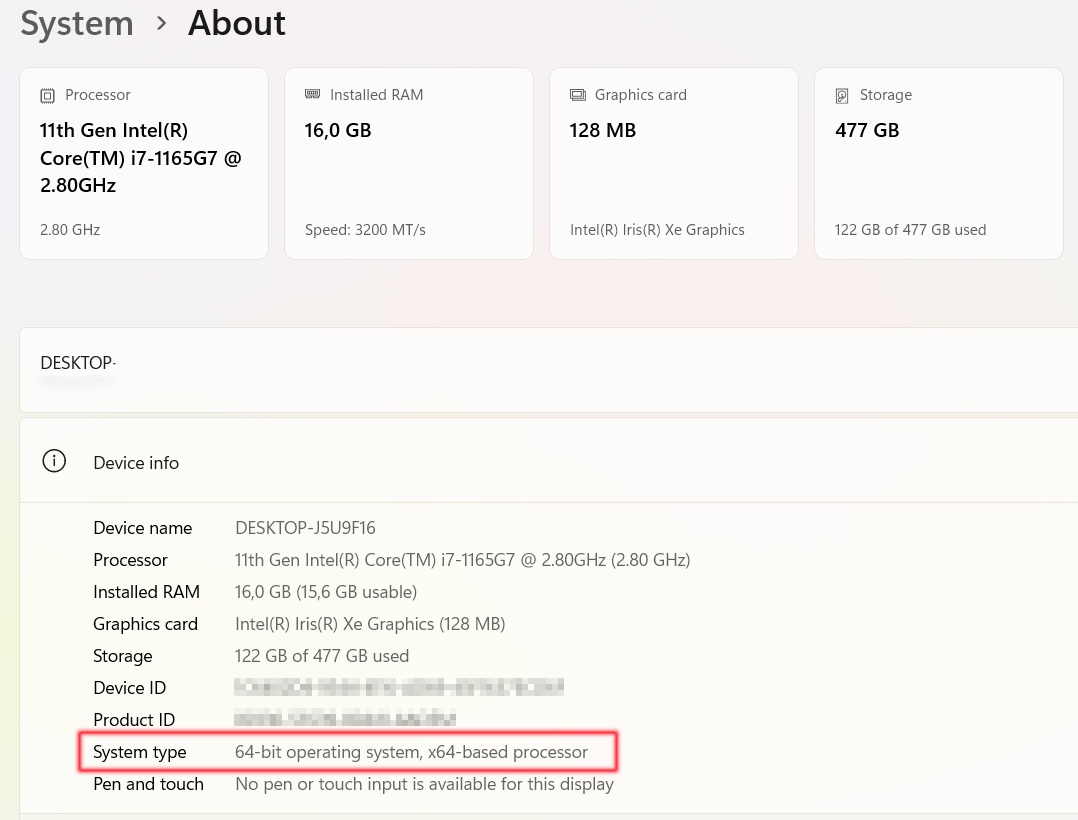
Press the Win + Pause key combination (or go to Settings > System > About).
Under “System type”, you will see either:
- “ARM64-based processor” → Windows on ARM not compatible
- “x64-based processor” → Classic Windows (Intel/AMD)
Or open the Windows Task Manager (Ctrl + Shift + Esc).
- Go to the ‘Performance’ tab and look under ‘CPU’.
- If it says ‘ARM’ or ‘Qualcomm’, Windows on ARM is running.
Because fingerprint readers are security-critical and need to operate at a low-level hardware level, no drivers for Windows on ARM can be emulated.
7. Poor recognition performance
Please delete your fingerprints by going to Accounts > Sign-in options > Fingerprint recognition (Windows Hello) and clicking the ‘Remove’ button under ‘Remove this sign-in option’,
Then set up fingerprint recognition again.
Please note: All our sensors are touch sensors. This means you simply need to place your finger on the sensor – a quick, light tap is sufficient. Please do not swipe across it or press too hard!
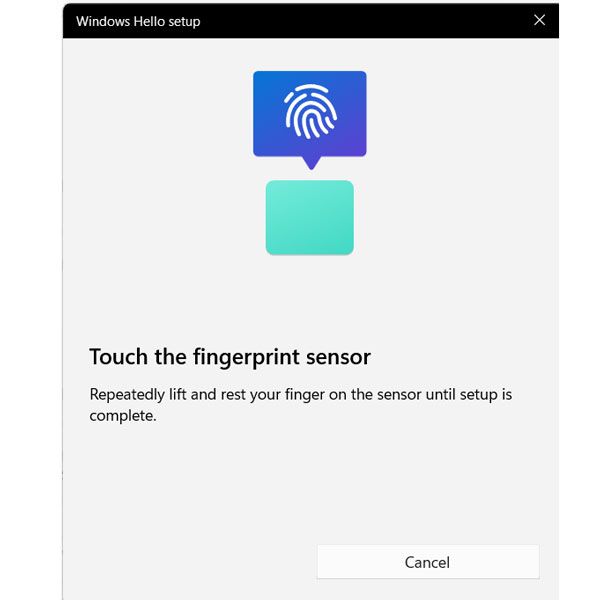
8. Error during enrolment
If a generic error message appears during Windows Hello setup (“Something went wrong...”) and you are logged in as an “Administrator”, try the following:
a) Switch to signing in with a Microsoft account (recommended): Go to Settings > Accounts > Your information and select ‘Sign in with a Microsoft account instead’.
b) Alternatively, create a new standard user account with admin rights that is not named ‘Administrator’. Then carry out the setup using the new user account.
9. ESS activated
You cannot use Windows Hello Enhanced Sign-in Security (ESS) with an external USB fingerprint reader unless it especially designed and certified for ESS. Current USB fingerprint sensors are not compatible with ESS. ESS requires strict matching hardware and cannot be used with regular "Windows Hello compatible" USB sensors. To use the fingerprint sensor, you must turn off the feature in your settings.
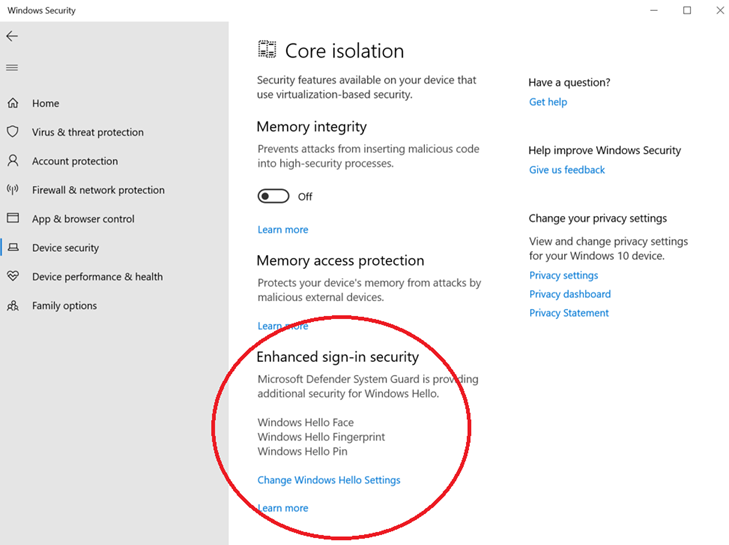
If your PC has ESS enabled and is blocking the external reader, you must turn ESS off.
- Go to Settings > Accounts > Sign-in options.
- Look for the Enhanced sign-in security (or Secure Biometrics) setting.
- Toggle this setting Off.
- Unplug and replug your external USB fingerprint reader, and try enrolling your fingerprints again.
On some systems with activated ESS, it may be necessary to first delete and disable all Windows Hello settings and then disable the feature Enhanced Windows Biometric Security in the computer’s BIOS.
Was this article helpful?
That’s Great!
Thank you for your feedback
Sorry! We couldn't be helpful
Thank you for your feedback
Feedback sent
We appreciate your effort and will try to fix the article