Displays
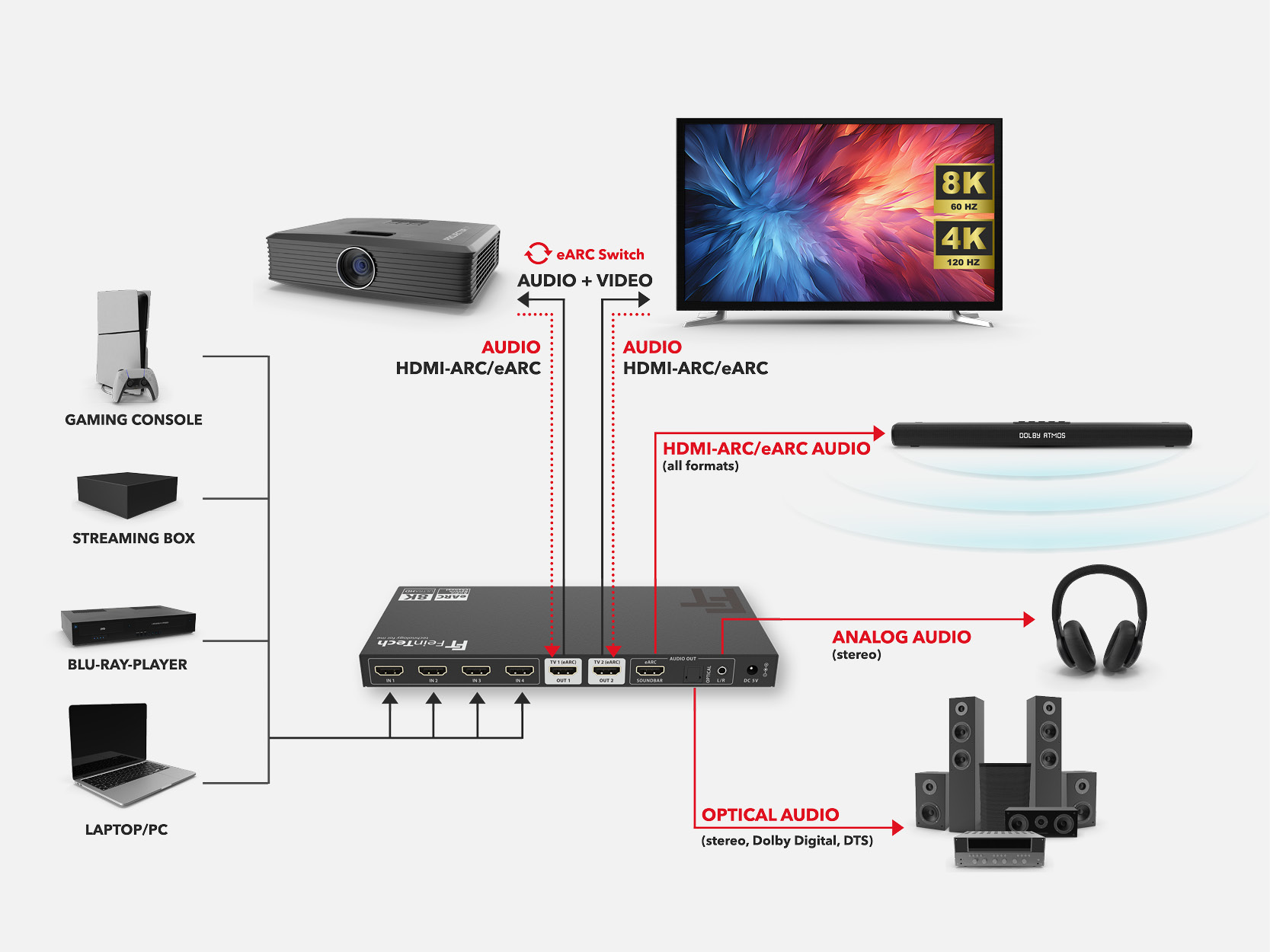
The AX341 is designed for use with 2 displays. Displays can be TVs, video projectors, or computer monitors. When an audio/video signal from an external source device is played through the AX341, both displays receive the same signal. Of course, both displays do not have to be switched on at the same time, but this is possible.
If a connected display has a TV tuner or apps, its audio can be played through the AX341 and the connected sound system via HDMI ARC (the HDMI Audio Return Channel). For this purpose, the respective display must be connected via its HDMI ARC port. By pressing the “eARC” button, you can select whether the audio signal from TV1 or TV2 should be used. At the same time, this determines which of the two displays handles device control via HDMI CEC. CEC can be used, for example, to control the volume of the soundbar. It also enables the source device, AX341, and display to switch on and off together.
Downscaler
The AX341 features a downscaler that converts the signal from 8K to 4K or from 4K to Full HD as required. This is ideal if you want to use a modern TV and an older projector at the same time.
However, the downscaler only adjusts the resolution, not the refresh rate or colour space. For example, a 4K signal at 120 Hz is downscaled to 1080p at 120 Hz. For smooth operation, both connected displays should therefore support the same refresh rate. Please note that downscaling only supports the resolutions 7680 × 4320, 3840 × 2160, and 1920 × 1080. It therefore cannot scale 2560 × 1440 to 1080p, nor can it scale 4K to 2560 × 1440.
Soundbar
The AX341 is designed for use with a soundbar that has only a single HDMI connection (HDMI-ARC or HDMI-eARC). Such a connection would normally be connected to the HDMI input of a TV labelled ARC or eARC (Audio Return Channel).
When using the AX341, connect the soundbar to “Soundbar (eARC)” and the display to “TV OUT 1 (eARC)” or “TV OUT 2 (eARC)”. Alternatively, you can connect an AV receiver. However, in this case you cannot display video from the AVR or from source devices connected to the AVR.
Other Audio Devices
The AX341 additionally provides an analogue audio output and a digital optical audio output (Toslink). These outputs provide the same audio signal as the soundbar output, but only if the respective interface technically supports the audio format.
The analogue output (3.5 mm jack) therefore only provides sound when PCM stereo is being played. If Dolby Digital is used, this output remains silent.
Toslink can transmit PCM stereo, DTS, or Dolby Digital. The AX341 does not convert audio formats. You therefore need to configure the source device so that it outputs a compatible audio format.
The volume of audio devices connected in this way cannot be controlled via HDMI. You must either use a universal control function — many TVs and media players such as Apple TV or Fire TV offer this — or adjust the volume directly on the connected sound system.
Source Devices
You can connect any source device with an HDMI output to the AX341. These can include TV set-top boxes, Blu-ray and other media players, game consoles, computers, and similar devices. The AX341 supports all commonly used HDMI formats, including 4K video with Dolby Vision, gaming at 4K 120 Hz, and 3D movies on older Full HD displays.
If you connect a source device to the AX341 for the first time and do not get a picture, unplug the source device from the mains and restart it.
HDMI Cables
The AX341 can be used with conventional passive HDMI cables. The recommended maximum cable length depends on the selected video resolution. Higher video resolutions reduce the possible cable length.
For gaming at the highest possible resolution, we recommend a maximum cable length of 2 m. For 4K 60 Hz video playback, passive cables should not be longer than 5 m.
If longer cable runs are required, you can use active HDMI cables. These transmit HDMI signals via optical fibre and therefore support considerably longer distances.
Our ProAqtive cables are available in lengths of up to 20 m, while our ProFibre cables are available in lengths of up to 50 m.
Was this article helpful?
That’s Great!
Thank you for your feedback
Sorry! We couldn't be helpful
Thank you for your feedback
Feedback sent
We appreciate your effort and will try to fix the article